 jFed
jFedjFed for AM Developers
If you develop an AM (typically supporting the Geni v3 AM API), to enable your testbed to be used from tools such as jFed, there are some practical things you need to be aware of.
This documentation goes into details about how to add your AM to jFed, how to test your AM with jFed, and gives some info on the advertisement and request RSpec that your AM might want to support.
Note
A lot of this documentation is not yet written. If you need a part that is not yet written, ask the jFed developers about it. We will gladly try to shift priorities to complete the required sections as fast as possible.
Adding an AM to jFed
Todo
This documentation is under construction. Please contact jfed-bugreports@atlantis.ugent.be, and we will do our best to improve this document where you need it.
This sections explains how to add details about your AM to jFed. This is needed in order to use the AM from the jFed software.
First of all, note that this section is about ading an AM, an Aggregate Manager (sometimes also know as CM, “Component Manager”). If you want to setup and use your own user and slice authority (SA and/or MA), there are some extra complications not mentioned here. (Feel free to ask us for additional info if you are in this case.) Note that if you federate your AM with the fed4fire SA and MA, there is not need to configure jFed to use the SA/MA of your testbed (if you have one), so there is also no need to configure it in jFed.
In short, this section assumes that you have a fed4fire account, and you will login to jFed with this account, in order to use your AM.
Requirements
You need a few things before you get started:
- A server to run the AM software on.
- A publicly reachable IP for that server. This needs to be either an IPv4 or an IPv6 address. We recommend both.
- A DNS name for that server, that resolves to the publicly reachable IP addresses of the server. (Recommendation: It’s nice if the DNS name refers to your testbed and is specific for your AM. Example: am.mytestbed.example.com) (Note: A DNS name is not strictly required, but very highly recommended)
- Choose a URN for your AM. This is of the form: urn:publicid:IDN+DNSNAME+authority+am where your replace DNSNAME by the DNS name of your AM. (Example: urn:publicid:IDN+mytestbed.example.com+authority+am). If you don’t have a DNS name for your server use a globally unique name for your testbed instead. It’s not recommended to use an IP address instead, though that can work. Never use localhost or 127.0.0.1, and never use the default value of the AM software you use. (For more info, see Choosing your component manager urn)
- Choose a port at which you server will run. There is no standard port in the specification, so a lot of different ports are used in practice (12369, 8010, …). We recommend using port 443, if that is not in use by anything else. The advantage of using the default https port is that it is reachable through most firewalls, and the protocol is in fact using https.
- You need a X509 Server Certificate, because the AM server uses https. This can be a self signed certificate (jFed stores a list of these to make it work safely). However, in that case, make sure you configure the fields in your self signed certificate correctly. See the next section for more details.
- You probably have testbed resources that you want to make reachable to experimenters using SSH. There are 2 options, either you need to public IP addresses that you can assign to these nodes when needed (IPv4 or IPv6), or you need to have one machine with a publically reachable IP address (IPv4 recommended) act as a gateway. In both cases, make sure you have these address(es) available. You can combine the gateway machine with the machine on which the AM runs, but for security reasons, this is not recommended.
An example of these choices for the imec Virtual Wall2 testbed:
- IP: 193.191.148.179
- DNS name: wall2.ilabt.iminds.be
- URN: urn:publicid:IDN+wall2.ilabt.iminds.be+authority+cm So the URN including the DNS name as TLD/TLA part of the URN. “authority” as “type” of the URN, and “cm” as “name” part of the URN. (We actually recommend “am” as name instead of “cm”, but both are fine.)
- Server certificate:
- Not self signed in our case, but signed by a trusted root.
- “Subject Name” contains CN=www.wall2.ilabt.iminds.be, as well as details about our address and organisation
- “Subject Alternative Name” contains DNS:www.wall2.ilabt.iminds.be, DNS:boss.wall2.ilabt.iminds.be, DNS:authority.ilabt.iminds.be
- Our server runs at port 12369, because emulab already uses port 443 for another webserver, with different SSL settings.
- The full URL at which our AM is reachable is: https://www.wall2.ilabt.iminds.be:12369/protogeni/xmlrpc/am/3.0
- Experimenters can reserve servers at our AM. All of these are then reachable with SSH using public IPv6 addresses. We also have a pool of IPv4 addresses which users can assign to servers if needed. In addition, we have a gateway (bastion.test.iminds.be, which has both an IPv4 and IPv6 address), which can be used by experimenters that do not have IPv6.
Server X509 Certificate
Todo
this section is a draft version
An AM uses a message format specified in Geni AM specification, which is sent over XML-RPC, which is sent over HTTPS with client authentication. So an AM runs at an HTTPS server (= HTTP over SSL) that is configured to require client authentication.
This means that the firsts step is to correctly setup the SSL server. The first step is to configure the servers X509 certificate. This certificate is used to identify the server to the users. Because only the server has the private key matching the certificate, users can setup a secure connection.
For SSL on the public internet, it is required that your server’s X509 certificate is signed by a trusted root. All browsers have a list of these trusted roots. This is in short how the internet is made secure.
jFed alsp uses the internet’s trusted roots, so if your server certificate is signed by these, that should be enough. However, for convenience, jFed also allows you to use a self signed X509 certificate. You can then add this self signed certificate to the list of certificates that jFed trusts, and everything will work without requiring the hassle of aquiring a “real” X509 certificate signed by a trusted root.
There are some best practices to take into account, regarding the self signed X509 certificate that you generate for your AM:
- “Subject” field of the certificate must contain a “CN” that is the hostname of the server (NOT and IP, the DNS hostname!)
- The “X509v3 Subject Alternative Name” section, must contain a “DNS” entry, which is the hostname of your server (NOT and IP, the DNS hostname!)
Another best practice derived from these, is that your AM needs a DNS name, not just an IP address.
Note that you can also add your AM to jFed if these guidelines are not respected. Try to at least have a meaningful “Subject” “CN”, and avoid a “Subject” “CN” like “localhost” at all cost.
Allowing access to federated users
Federate with fed4fire User and Slice Authority
Your AM needs to be configured so it is federated with the fed4fire user and slice authority. How to do this depends on the AM software.
General instructions: You need to add the fed4fire root certificate to the list of trusted authorities.
AM specific instructions:
- For GCF, you need to put the root certificate file in the gcf trusted_roots directory. Example command to do this
curl http://users.atlantis.ugent.be/bvermeul/wall2.pem > ~/.gcf/trusted_roots/wall2.pem
Todo
this section needs to be expanded with the exact procedure for other AM software (emulab, …)
The result of configuring this is:
- Your AM will allow (client-authenticated) SSL connections from fed4fire users. If not configured correctly, your AM might terminate SSL handshake from fed4fire users (so no HTTP data is even sent). If correctly configured, your AM will know for each connection that an fed4fire user is connected. This is called “authentication”.
- Your AM will accept user and slice “credentials” that is received from fed4fire users. It will know what fed4fire allows these users to do (typically, a slice credential will tell the AM a user can reserve resources). This is called “authorization”.
Firewall
You’ll need to make sure some ports are reachable:
- Your AM is listening on one or two ports, and these should be publicly reachable.
- If your testbed nodes are reachable directly, the necessary ssh port on each node should be publicly reachable. If you use a testbed specific ssh proxy/gateway, only that proxy should be publically reachable.
- Your AM should be ping-able from the fed4fire monitoring domain, so it should allow ICMP for at least that domain.
- Your testbed OML monitoring should be able to create outgoing connections to the fed4fire monitoring domain. (Allow outgoing TCP to flsmonitor.ilabt.iminds.be:3003)
Note: The fed4fire monitoring connections will come from:
2001:6a8:1d80:2031:225:90ff:fe1d:1c68193.191.148.194
Only for ICMP you could choose to allow only these (but you can also allow public access). For AM and SSH access, the ports need to be publicly reachable anyway. Don’t rely too much on these not changing, you probably need to allow the whole subnet.
Configuring the AM GetVersion call
Your AM needs to be configured to return the correct info in the GetVersion reply. This is not a critical step, and it can be skipped. But it is a good practice to get this right. It also makes the jFed scanner work better.
The GetVersion call is a call that the scanner uses to retrieve basic server info. It is defined in the AM specification.
The results contains a lot of info, most of which will be automatically filled in correctly by the server software.
Experience shows that the following fields have to be checked for correctness:
"urn": "urn:publicid:IDN+example.com+authority+am",
"geni_api_versions": {
    "2": "https://example.com/am/2",
    "3": "https://example.com/am/3"
}
You need to make sure that:
The URN is correct. That includes the hostname part (
example.comin the example above), and the name partamin the example above. The name should beam, orcm. The URN must always match the expected URN in thecomponent_manager_urnattribute in the request RSpec.The
geni_api_versionsURLs must point to the correct server URL(s). This must be the URL at which the AM is publically available. Make sure that:- The protocol is
https - The port is correct
- The path is correct
- The hostname is not
localhostor127.0.0.1. - Preferably, the hostname is not an IP address but a DNS hostname.
- Multiple URLs are allowed if the server supports multiple AM versions. But this is not required. Do make sure however that at least the version contacted is listed. That is, if you connect to
https://example.com/am/2it is at least expected that"2": "https://example.com/am/2"is listed.
- The protocol is
Todo
this section needs to be expanded with info for specific AM software
Using the jfed scanner tool
Note
This section assumes you are using linux or MAC. Instructions for windows are very similar.
The jFed scanner can be used to automatically detect basic AM server settings, and store them for use by the other jFed tools. This way, you can add use an experiment AM to your local jFed, and test it.
While the scanner can be a usefull tool, it fails in some scenarios (as it is hard to test all strange AM configurations). It is also not frequently tested, so it can break in some releases. Finally, it is not aimed at end users, and is thus not a user friendly tool. For these reasons, if you experience problems with it, don’t hesitate to contact us.
You can find the current stable jFed Scanner GUI in this archive.
After downloading the archive, and extract it to a directory. Then execute scanner-gui.jar.
Example commands:
 $ wget -nv http://jfed.iminds.be/releases/develop/VERSION/jar/jfed_gui.tar.gz
2017-01-10 11:27:28 URL:http://jfed.iminds.be/releases/develop/VERSION/jar/jfed_gui.tar.gz [25654644/25654644] -> "jfed_gui.tar.gz" [1]
 $ tar xfz jfed_gui.tar.gz
 $ cd jfed_gui
 $ java -jar scanner-gui.jar
Once the scanner tool has started, log in using your fed4fire account.
In the next screen, fill in the Aggregate Manager URL, and click the Scan button.
Requirements for the URL:
- It needs to be HTTPS
- Do not forget the correct port
- Do not forget to add the full path to the AM endpoint
- Preferably, use a DNS hostname, not an IP address
When the scan is completed, you end up on the Scan Overview tab. Here, in the ideal case, you’ll see 4 green OK statuses. If not, something went wrong.
In the Call Logs and Debug Logs tab, you can find debug info which can help when something goes wrong.
In the Scan Output tab, all information the scanner gathered is shown. It is sometimes needed to uncheck the checkboxes next to any incorrect or uneeded information. But usually, you do not need to do anything here.
In the Security tab, you will find the X509 certificate of the server. You need to verify if this is indeed the certificate of your server, and if that is so, you need to check the checkbox next to I trust all of the certificates above.
Then, click on the Show Results button.
You will see a JSON snippet containing the info that jFed will use. You can edit the following fields:
id: This should be a very short unique ID for the testbed. It should only contain letters, no spaces or special characters.longName: This is the “human readable” name of your testbed. This name may contain spaces and special characters.server/name: This is the “human readable” of the testbed server. This name may contain spaces and special characters. (It can be the same as the testbed longName)defaultComponentManagerUrn: This is the URN of your AM. Make sure it is correct.
If you click on Add to local jFed, the JSON snippet will be stored in ~/.jFed/extra_testbeds/<id>.json (where <id> is the ID you chose for the testbed). All jFed tools will load files from that dir to add additional testbeds.
Todo
this section needs some screenshots
Local files for adding testbeds
Using local files, you can add your AM to jFed.
When the jFed scanner has succesfully scanned a server, it shows a button “Add to local jFed”, which will write such a file.
These files are stored in the jFed config dir, in the extra_testbeds dir. On Linux this is in ~/.jFed/extra_testbeds/.
Below is an example of such a file with dummy values. You can also look at the global jFed configuration (see link in next section) for real examples.
Content of ~/.jFed/extra_testbeds/mytestbed.json:
{
    "id": "mytestbed",
    "longName": "My Brand New Testbed",
    "defaultComponentManagerUrn": "urn:publicid:IDN+mytestbed.org+authority+am",
    "allowLinks": false,
    "servers": [
        {
            "name": "My Brand New Testbed",
            "certificateChain": "-----BEGIN CERTIFICATE-----\nMII... SERVER CERTIFICATE HERE ...\n-----END CERTIFICATE-----\n",
            "urnTld": "mytestbed.org",
            "baseUrl": "https://am.mytestbed.org/",
            "flags": [
                "featureExecuteAndInstallService",
            ],
            "services": [
                {
                    "api": "Geni.AM",
                    "apiVersion": "3",
                    "url": "https://am.mytestbed.org/",
                    "urn": "urn:publicid:IDN+mytestbed.org+authority+am",
                    "@type": "Service"
                }
            ],
            "defaultComponentManagerUrn": "urn:publicid:IDN+mytestbed.org+authority+am",
            "@type": "Server"
        }
    ],
    "@type": "Testbed"
}
Adding to jFed for all users
The jFed team can also add the same info about your AM, to the “global” jFed config. That enables the use of your AM for all jFed users. The global jFed configuration is available at https://flsmonitor-api.fed4fire.eu/testbed?embed=true
Contact us to add your AM.
You do not need to have a local wokring config, but that helps.
The minimal info you need to send us is:
- The URL at which your AM runs (the full URL, including hostname, port and path)
- The name you want to see for your testbed inside jFed and at our monitoring site
- An example request RSpec (which shows us the sliver_type(s) used and other info)
- Does your testbed support (or even require) specifying disk images in the request RSpec?
- Does your testbed support (or even require) assigning specific nodes (component_id attibute) in the request RSpec?
- Does your testbed support (or even require) specifying hardware types in the request RSpec?
- Are links between nodes of your testbed supported?
- Does your testbed support “stitched” links? (If you’re unsure what that is, your testbed doesn’t support them.)
Other info which is usefull to send us is:
- Which “icon” in the jFed experiment GUI is the best match for your testbed nodes (ex: physical node, VM, wireless, …)?
- For security reasons, it is recommended to also send your server certificate (in PEM format). We can also retrieve the certificate ourself, but theoretically, that could be intercepted.
- The coordinates of the testbed (latitude, longitude and country)
- Info on the organisation running the testbed (full name, latitude, longitude, country, address, link to logo, link to website)
- Additional info about your testbed: link to documentation, link to testbed description and/or other general testbed information.
- If your testbed has a web interface (where users can login and control the testbed) in addition to the AM, you can send us that link as well.
- The email address(es) of the “primary” contact(s) of the testbed. If we need to contact someone about the testbed, we use these emails.
- The email address(es) of the “technical” contact(s) of the testbed. For technical questions about the testbed, these emails are used. These emails also are used for automatic mails about the tests, and in the future, testbed specific bugreports will also be sent here. Let us know wether or not you want the technical contact(s) of the testbed to receive automated emails when the testbed goes down.
- The email address(es) of the GDPR contact(s) of the testbed. Anything related to the GDPR we will send here.
- The URN(s) of the users that may have admin access to some of the data we store about your testbed. This is currently not used, but we plan on using this later to allow you to restart tests, enable/disable tests or edit testbed info. This is typically the URN of the users you use to login to jFed.
- Which software does your testbed AM use? Typical options are: emulab, gcf, openstack, …
(A lot of email addresses are mentioned above, but typically, they are all just the same single email address.)
Adding your AM to one of the experiment GUI “icons”
The jFed Experimenter GUI has a graphical editor, where you can drag “icons” to the canvas and in this way easily configure an experiment. Each of these icons has their own list of relevant testbeds.
Note that you do not need these icons to test your AM using the jFed Experimenter GUI: after you added your testbed to jFed, you can directly edit the XML Rspec, and everything will work.
It is currently not possible to manually add a testbed to one of these jFed icons in your local jFed install. Adding testbeds to the “icons” can only be done by the jFed developers. When you contact us to add your testbed to jFed for all users, we will discuss which icon(s) it needs to be added too, and add it for you.
Debugging your AM
jFed offers some tools that can help a lot when debugging your AM.
Once your AM is running, we can add it to our fedmon monitor.
jFed Probe GUI
Todo
this section needs to be expanded
The jFed Probe GUI is a tool for manually calling servers. Very low level calls can be made, and low level replies are visible. This tool requires knowledge of the communication APIs, and the tool itself is not a very user friendly GUI. It can be very valuable for testbed developers that wish to debug their server.
While you can execute all calls by filling in all details manually, for convenience, the probe GUI can automatically execute user and slice related calls with minimal user input:
- Start the Probe GUI and login
- Expand “API Wrappers”
- Expand “Automatic User and Slice API Wrapper”
- Select “getLocalUSerCredentials”
- Click the big “Call” Button. After a while, you’ll see that a call was done, and it’s results will appear. This call contains the user credential. (the jFed probe has stored it and will automatically fill it in for next calls.)
Now that you have a user credential, you can use it to create a slice:
- Go to the “Automatic User and Slice API Wrapper” methods, and select “createSlice”
- In the form to the left, fill in “sliceName”, choose an expire time (2 hours by default)
- Click to check the checkbox before “subAuthName”, and fill in the EXACT name of your project as “subAuthName”. (“sub authority” and “project” are the same thing)
- Click the big “Call” Button. After a while, you’ll see that one or more call are done, and their results will appear. This last call contains the slice credential. (the jFed probe has stored it and will automatically fill it in for next calls.)
If you go to any AM call now, you will see that the slice name and credential are filled in by default.
jFed automated tester
The Automated Testing GUI: This tool is used to run tests scenarios on servers. This is only useful for server developers, and it is not a very user friendly GUI. It includes simple tests, such as veryfing if the GetVersion reply of an AM server is correct, and more complex tests, such as verifying if an AM can correctly provision a node, and if that node can be logged in to using SSH.
First start the automated tester. You can find the latest jFed releases here. Download the “jFed GUI (archive)” from that page.
After downloading the archive, extract it to a directory. Then execute automated-testing-gui.jar.
Example commands:
$ wget -nv http://jfed.iminds.be/releases/develop/VERSION/jar/jfed_gui.tar.gz
2017-01-10 11:27:28 URL:http://jfed.iminds.be/releases/develop/VERSION/jar/jfed_gui.tar.gz [25654644/25654644] -> "jfed_gui.tar.gz" [1]
$ tar xfz jfed_gui.tar.gz
$ cd jfed_gui
$ java -jar automated-testing-gui.jar
You can also use the installer, and install the automated tester that way.
When you start the automated tester, you need to log in with your user account.
On the next page, you need to select the testbed you want to test, and the test you want to run.
In the example below, we are testing the “Virtual Wall 1” testbed. The chosen test is “TestNodeLogin”.
This test will create a new slice at the logged in user’s authority. Then it will contact the tested testbed, it will execute Allocate and Provision calls, wait for the nodes to become ready, and then try to log in to the nodes.
Finally, no matter wether the tests fails or succeeds, a Delete call is made to free any resource reservations.
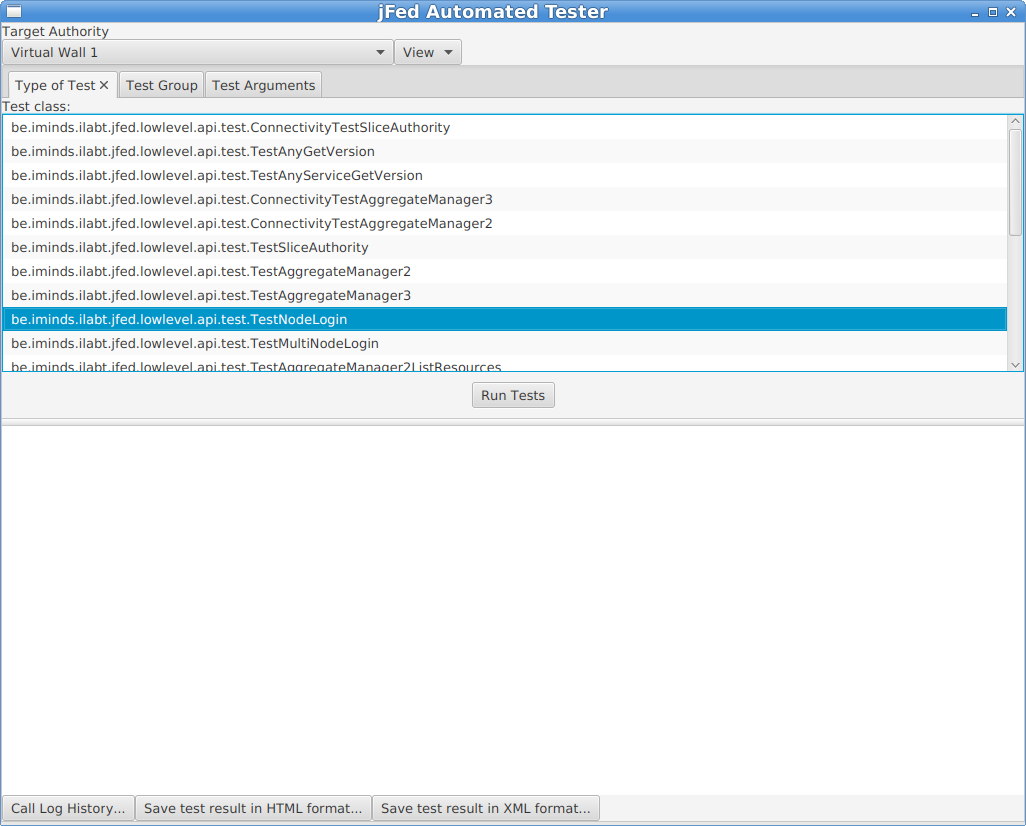
When the testbed (“Target Authority” at the top of the window) and the test are selected (in the “Type of Test” tab), you can optionally go to the “Test Arguments” tab. This tab lists all possible options for the tests. For a lot of tests, these are a lot of options, and they are undocumented. For the “TestNodeLogin”, you typically do not need to change anything. Some interesting configuration options are:
fixed_rspec: You can specify a custom RSpec here, if the automatically generated RSpec is not ok.fixed_rspec_url: You can specify the URL to a custom RSpec here, instead of entering the Rspec directly as with thefixed_rspecoption.
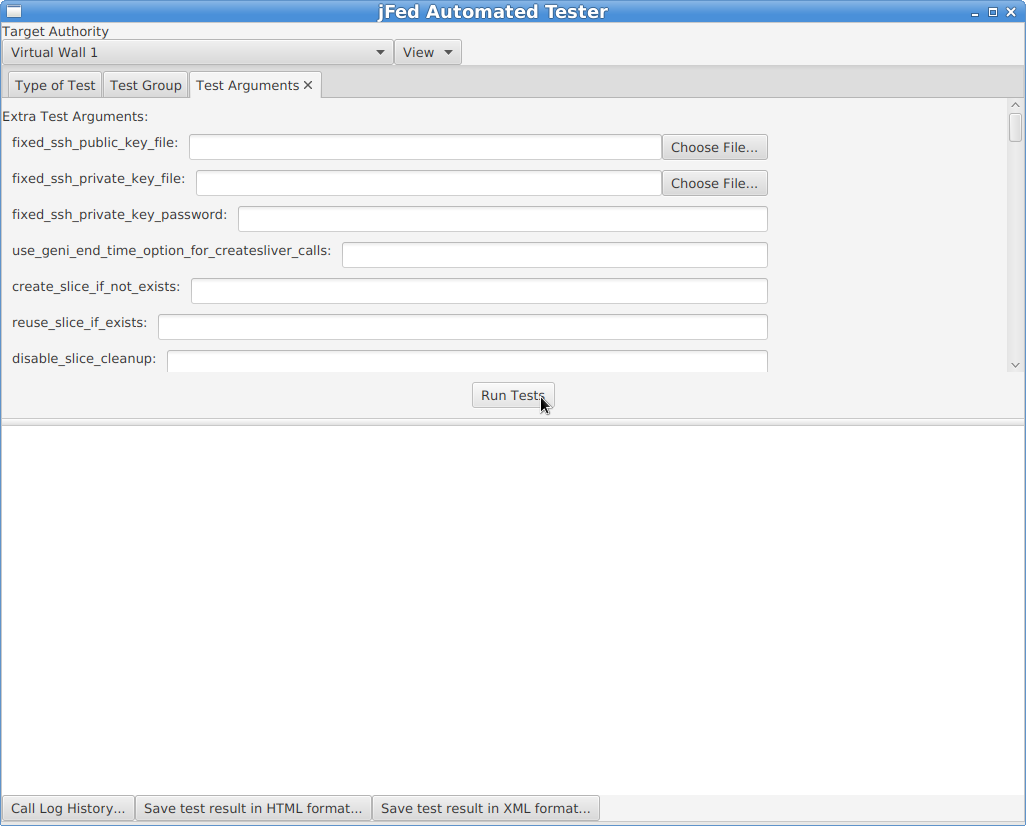
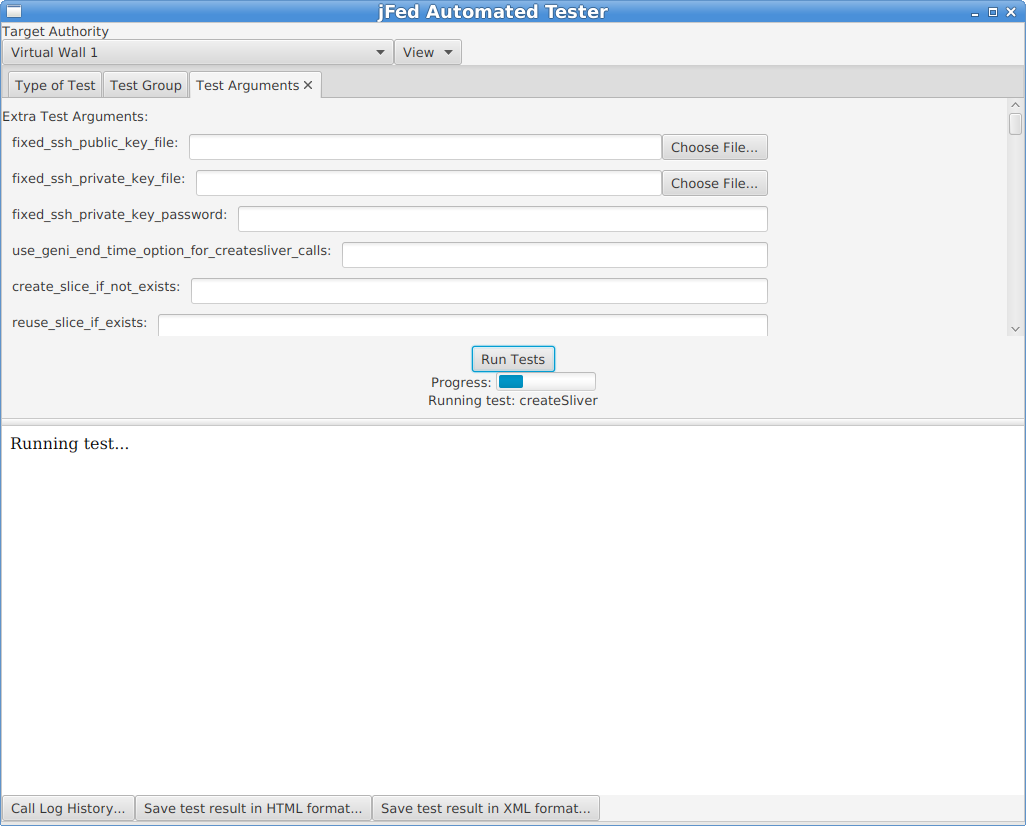
Next, click on the “Run Tests” button. You will see a progress bar while the test runs. A “TestNodeLogin” can take a few minutes, to more than 20 minutes, depending on how fast the AM is, and wether the nodes come online or not.
A test report will appear in the bottom half of the window when the test is finished. You can look into the details of each step. Note that you can click the “Hide/Show” buttons to show additional call details.
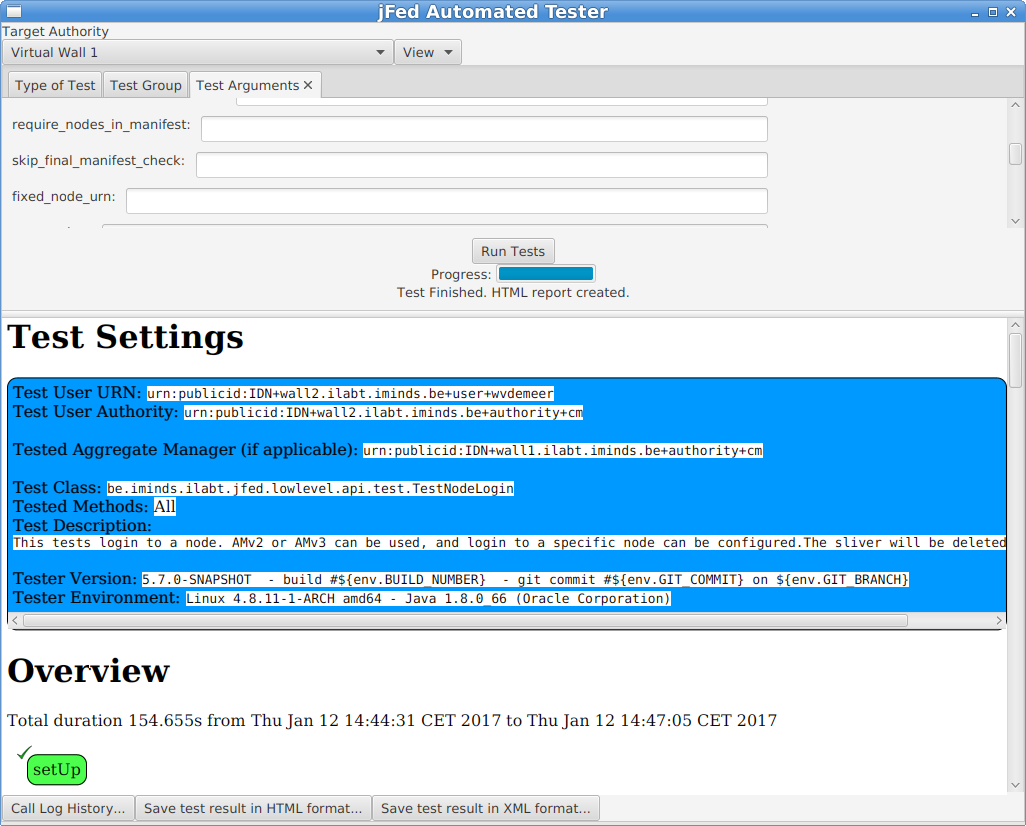
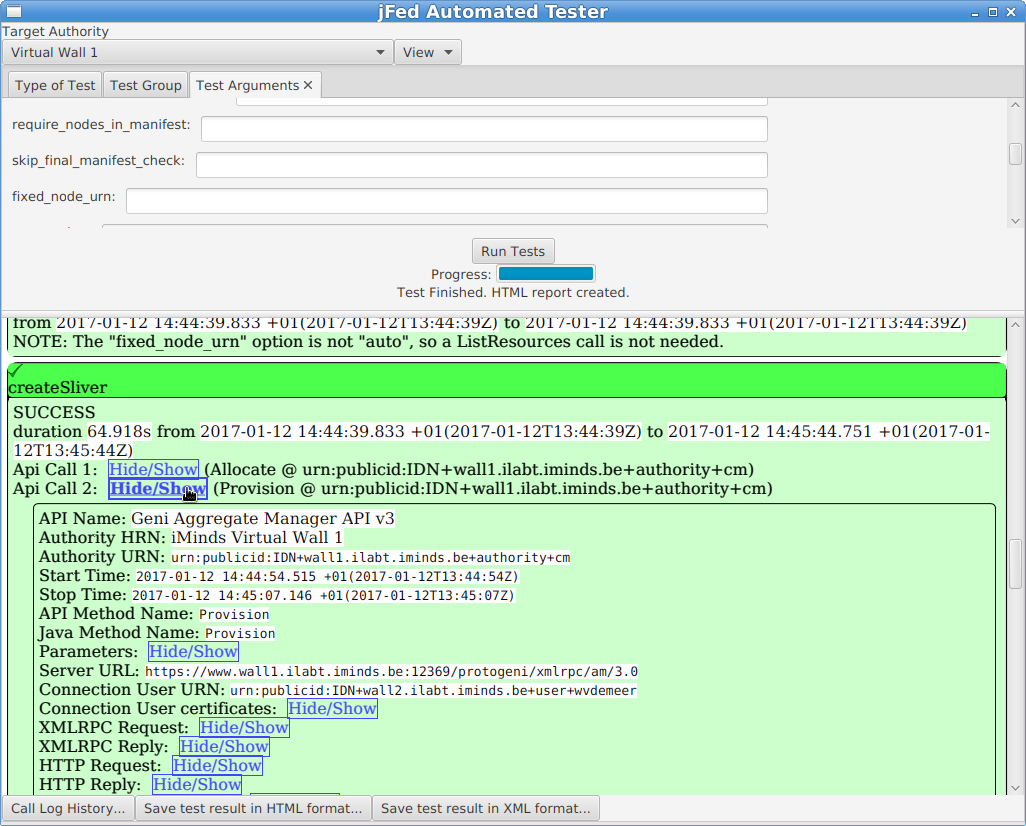
At the bottom of the window, there are some buttons of interest:
- The “Call Log History” button allows you to see the call details in the same way as the jFed probe shows them. This is sometimes easier than the HTML view above.
- You can use “Save test result in HTML format” to store the result to disk, which can be handy to send them to others.
Todo
this section needs to be improved
Permanent monitoring: Fedmon
Todo
this section needs to be written
The jFed team can add your AM to the “federation monitor”. Ask us about this.
As an example, here is the monitoring overview for all monitored imec/iMinds testbeds: https://flsmonitor.fed4fire.eu/fls.html?testbedcategory=iMinds&showlogintests
Rspec details for AM developers
General
There are 3 types of RSpecs, request, manifest and advertisement RSpecs.
All RSpecs must be valid XML, and for each type a slightly different schema is used. Not that “valid XML” is defined as:
- It is well formed XML (closing and ending tags match, etc.). This means the XML can be parsed without error by an XML parser.
- The XML follows the specified schema. This means that all rules specified in the schema are followed, and the rules conserning namespace are followed.
The XSD files that define the RSpec schema for “geni version 3 RSpecs” can be found at the URI used to identify the namespace: http://www.geni.net/resources/rspec/3 .. note:: There are 3 root xsd files at that location: one for the request RSpec schema, one for the manifest RSpec schema and one for the advertisement RSpec schema. .. note:: The URI used to define an XML namespace does NOT need to host any XSD files. This is often done as it is a convenient location, but the URI can also be only an identifier. Research XML namespaces if this is confusing.
The Rspec schema’s allow a lot of freedom: they allow adding custom elements at different places in the RSpec. However, this is only allowed if the additions are in a different namespace than the “geni v3 rspec” namespace. This means you need to define a custom namespace for any RSpec extension you make!
Note that there are certain rules on how an AM should handle unknown RSpec extensions in RSpec requests. See the section on requests RSpecs below.
Choosing your component manager urn
In the RSpecs, resources belong to a certain “component manager”. This is the authority responsible for these resources, and thus it is typically your AM itself.
This binding is represented in each RSpec, using the component_manager_id attribute, which has an URN as value.
More info on the exact format of the URNs used can be found at http://groups.geni.net/geni/wiki/GeniApiIdentifiers.
Put simply, the URN using for the component_manager_id attribute is either of the form urn:publicid:IDN+TOPLEVELAUTHORITY:SUBAUTHORITY+authority+cm or of the form urn:publicid:IDN+TOPLEVELAUTHORITY:SUBAUTHORITY+authority+am. (both ending, cm and am are in use at different testbeds. We recommend am, but it doesn’t really matter.)
It is best NOT to use :SUBAUTHORITY at all, unless you really know you need it. So the typical urn is: urn:publicid:IDN+TOPLEVELAUTHORITY+authority+cm
The TOPLEVELAUTHORITY part of the URN is preferably the top level DNS name of your AM. In some cases, a nickname is also ok. Both localhost or 127.0.0.1 are not allowed. IP addresses should be avoided.
This URN is used in the following places:
* In the ``component_manager_id`` attribute of node elements in the advertisement RSpec.
* In the ``component_manager_id`` attribute of node and link elements in the request and manifest RSpec.
* Optionally: in the ``GetVersion`` reply, in the ``value`` ``urn`` field.
A few examples of real component manager URNs:
* urn:publicid:IDN+wall2.ilabt.iminds.be+authority+cm
* urn:publicid:IDN+utah.cloudlab.us+authority+cm
* urn:publicid:IDN+fuseco.fokus.fraunhofer.de+authority+cm
* urn:publicid:IDN+instageni.cs.princeton.edu+authority+cm
* urn:publicid:IDN+exogeni.net+authority+am
* urn:publicid:IDN+exogeni.net:bbnvmsite+authority+am
RSpec basics
The basic rspec format allows expressing raw bare metal hardware nodes as well as VMs/container nodes. The sliver_type element is used, as well as the exclusive attribute. Support for both is mandatory in each of the RSpec types.
The sliver_type element is used to specify which sort of node is requested or available. The 2 common cases are bare metal, and virtual machines. You are free to pick a sliver_type name that makes sense for your testbed.
For bare metal nodes, emulab uses raw-pc as sliver_type name.
Some examples of sliver_type names for virtual machines:
default-vmis defined within geni as a “convenience” sliver type. Each AM that supports VMs is supposed to replace this by the default VMsliver_typefor that AM. This is makes it easier to write portable RSpecs that can be executed on multiple testbeds, without changing thesliver_typefor each testbed. It is useful to support this feature if you AM supports VMs, but it is not mandatory.emulab-xenandemulab-openvzare the VMsliver_typeused by emulab (and thus instageni).xo.tiny,xo.small,xo.medium,xo.large,xo.xlargeare the types used by exogeni. Note that they map to the “size” of the VM.docker-containeris used by the ilab.t docker AM.
The exclusive attribute is always true for bare metal hardware, since you always get exclusive access to it.
Example:
<node client_id="node0" exclusive="true" component_manager_id="urn:publicid:IDN+wall2.ilabt.iminds.be+authority+cm">
    <sliver_type name="raw-pc"/>
</node>
For VMs, the user can specify the node exclusive attribute of the node to be either false or true. exclusive="false" means that other users can get a VM hosted on the same physical machine. exlusive="true" means that ohter users can not get a VM hosted at the same physical machine. For most cases with VMs or containers, exclusive="false" is always used.
Example:
<node client_id="node1" exclusive="false" component_manager_id="urn:publicid:IDN+wall2.ilabt.iminds.be+authority+cm">
    <sliver_type name="default-vm"/>
</node>
A request with exclusive="false" for a node where that is not supported by the testbed, should not result in a failure. The testbed should just change it to true in the manifest. However, a request for exlusive="true" for a node for which the testbed does not support it, should result in an error.
In the advertisment RSpec, the AM needs to list each allowed sliver_type for each node. The exclusive attribute takes a different meaning in the advertisement. exclusive="false" means that a request may never request exclusive access to a node. exlusive="true" means a request may request exclusive access.
Disk images are added as part of a sliver type, because they can differ depending on sliver type.
It is not required that an AM supports this functionality. In case an AM does not support it, it should fail with the correct error when a disk_image is specified in a request RSpec.
Example in a request:
<node client_id="node0" exclusive="true" component_manager_id="urn:publicid:IDN+wall2.ilabt.iminds.be+authority+cm">
    <sliver_type name="raw-pc">
        <disk_image name="urn:publicid:IDN+wall2.ilabt.iminds.be+image+emulab-ops:CENTOS65-64-STD-BIG2"/>
    </sliver_type>
</node>
In an advertisment RSpec, the AM should list all possible disk images within each sliver element of each node. Note that this means there will be a lot of repetition! (That is not a nice feature of the “geni version 3 rspec” schema, but there is no way around it.)
Optionally, an AM can allow (or require) requests that demand a specific piece of hardware. This is done using the component_id attribute. If this attribute is not specified, the testbed has to either fail the request (informing the user that component_id is mandatory), or pick a suitable piece of hardware automatically.
Note that the advertisement RSpec can contain an additional component_name attribute, which has a nickname for a node. This is typically the same as the last part of the component_id. This component_name attribute should NOT be used in a request RSpec. An AM should not require it, nor use it to assign specific nodes, only component_id should be used for that.
Example in a request:
<node client_id="node0" exclusive="true"
      component_manager_id="urn:publicid:IDN+wall2.ilabt.iminds.be+authority+cm"
      component_id="urn:publicid:IDN+wall2.ilabt.iminds.be+node+n082-01">
  <sliver_type name="raw-pc"/>
</node>
Optionally, an AM can allow (or require) requests that demand a specific type of hardware, but that do not specify the specific piece of hardware. This is done using the hardware_type element. If this element is specified and no component_id is specified, the testbed has to either fail the request (informing the user that hardware_type is not supported), or pick a suitable piece of hardware, matching the type, automatically.
Note
It is important to unserstand the difference between hardware_type and sliver_type.
Example in a request:
<node client_id="node1" exclusive="true" component_manager_id="urn:publicid:IDN+wall2.ilabt.iminds.be+authority+cm">
  <sliver_type name="raw-pc"/>
  <hardware_type name="gpunode"/>
</node>
In an advertisement RSpec, the hardware_type should be specified, if this feature is supported in the request RSpec. Note that it is allowed to specify multiple hardware_type elements in an advertisement RSpec. It is ok to do so if that makes sense for your AM. But if possible, it’s nice to keep it simple and specify only 1 hardware_type per node.
Example Advertisement RSpecs
This section describes how you can advertise the features of your testbed using the geni v3 RSpec format. jFed will automatically offer a lot of functionality when this is done correctly.
Bare metal access
Scenario: You want to give users “bare metal access” to nodes. This means they get full access, not access to a VM or container. The user is the only one getting access to the machine, typically as “root” or as a user with sudo privilegdes.
Advertisment RSpec example:
<node component_id="urn:publicid:IDN+example.com+node+pi1" component_manager_id="urn:publicid:IDN+example.com+authority+am" component_name="pi1" exclusive="true">
    <sliver_type name="raw-pc">
        <disk_image name="urn:publicid:IDN+example.com+image+raspbian"/>
        <disk_image name="urn:publicid:IDN+example.com+image+arch"/>
    </sliver_type>
    <hardware_type name="pc-raspberry-pi"/>
    <available now="true"/>
    <location country="NU" latitude="0.0" longitude="0.0"/>
</node>
Things to note:
exclusiveis true, because users get full acesss to the node.sliver_typeisraw-pc. This is the typical sliver type used to represent bare metal access to “PC like” hardware.hardware_typeispc-raspberry-pi. The hardware type name should be something that identifies the type of hardware to a user. In this case, the hardware is a Raspberry Pi computer. Another example are thepcgen01,pcgen02andpcgen03types, which are used on the imec virtual wall, and means “A PC of generation 1, 2 or 3”, users can then look up in the testbed documentation what the full specifications of each “generation” is.available now="true"means that this hardware is currently available.locationis used to specify the location of the node.countryis the country code, in this case, and invalid code, refering to “null island”. Off course you should use the real coordinate of your testbed node here. It is OK to use the same coordinate for all testbed nodes.
VM’s
TODO: explain
Advertisment RSpec example:
<node xmlns:emulab="http://www.protogeni.net/resources/rspec/ext/emulab/1" component_id="urn:publicid:IDN+example.com+node+vmhost1" component_manager_id="urn:publicid:IDN+example.com+authority+am" component_name="vmhost1" exclusive="false" >
    <sliver_type name="xen-vm">
        <disk_image name="urn:publicid:IDN+example.con+image+ubuntu14"/>
        <disk_image name="urn:publicid:IDN+example.con+image+ubuntu16"/>
    </sliver_type>
    <hardware_type name="pc-vmhost">
        <emulab:node_type type_slots="20"/>
    </hardware_type>
    <available now="true"/>
    <location country="NU" latitude="0.0" longitude="0.0"/>
</node>
Matching Request RSpec example:
<rspec xmlns="http://www.geni.net/resources/rspec/3" type="request" xmlns:jfed="http://jfed.iminds.be/rspec/ext/jfed/1">
    <node client_id="vm-one" component_manager_id="urn:publicid:IDN+example.com+authority+am" exclusive="false">
        <sliver_type name="xen-vm">
            <disk_image name="urn:publicid:IDN+example.con+image+ubuntu16"/>
        </sliver_type>
        <location xmlns="http://jfed.iminds.be/rspec/ext/jfed/1" x="100.0" y="100.0"/>
    </node>
    <node client_id="vm-two" component_manager_id="urn:publicid:IDN+example.com+authority+am" exclusive="false">
        <sliver_type name="xen-vm">
            <disk_image name="urn:publicid:IDN+example.con+image+ubuntu16"/>
        </sliver_type>
        <jfed:location x="100.0" y="100.0"/>
    </node>
</rspec>
Specialised hardware connected to single VM box
TODO: explain
<node component_id="urn:publicid:IDN+example.com+node+usrp2" component_manager_id="urn:publicid:IDN+example.com+authority+am" component_name="usrp2" exclusive="true">
    <sliver_type name="usrp-vm">
        <disk_image name="urn:publicid:IDN+example.com+image+plain"/>
        <disk_image name="urn:publicid:IDN+example.com+image+gnuradio"/>
    </sliver_type>
    <hardware_type name="pc-usrp"/>
    <available now="true"/>
    <location country="NU" latitude="0.0" longitude="0.0"/>
</node>
Combining Bare metal and VMs on a single node
TODO: explain
Hint: look at emulab advertisement RSpecs.
Request RSpec
Todo
this section needs to be finished
This section describes which request RSpec features you can use for your AM. jFed will automatically offer a lot of functionality when this is done correctly.
Some things to take into account in request RSpecs:
- Each node will have exactly one sliver_type in a request.
- Each sliver_type will have zero or one
disk_imageelements. If your testbed requiresdisk_imageor does not support it, it should handle bad requests RSpecs with the correct error. - The
exclusiveelement is specified for each node in the request. Your testbed should check if the specified value (in combination with thesliver_type) is supported. and return the correct error if not. - The request RSpec might contain links that have a
component_managerelement that maches your AM. If you AM does not support links, it should return the correct error.
Some information will be in a request RSpec, that needs to be ignored and copied to the manifest RSpec unaltered. This is important to do correctly.
- A request RSpec can contain nodes that have a
component_manager_idset to a different AM. You need to ignore these nodes, and copy them to the manifest RSpec unaltered. - A request RSpec can contain links that do not have a
component_managermatching your AM (links have multiple component_manager_id elemnts!). You need to ignore these links, and copy them to the manifest RSpec unaltered. - A request RSpec can contain XML extensions in nodes, links, services, or directly in the rspec element. Some of these your AM will not know. It has to ignore these, and preferably also pass them unaltered to the manifest RSpec.
Example request:
TODO request
Example manifest:
TODO manifest
Note that the node todo and the element todo are copied unaltered to the manifest.
Manifest RSpec
Todo
this section needs to be written